Presentation Videos
Athletes Presentation Recording (Example)
Match Recording (Example)
Detailed Description
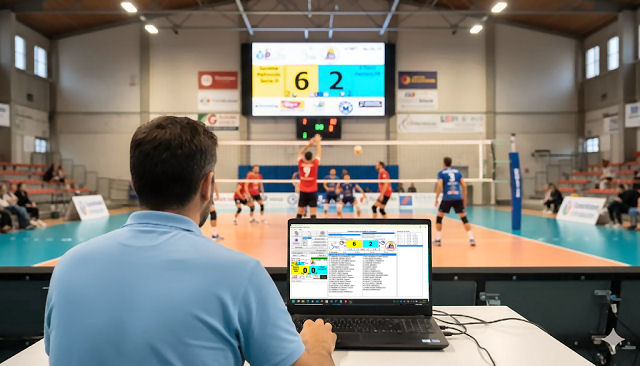
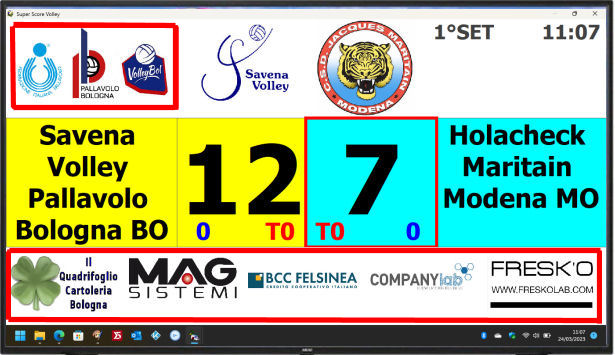
This Windows application manages the Multimedia scoreboard for Volleyball matches. Beyond basic scoreboard management, it can also handle: player images, team images, and club logos. It also manages scoring in a controlled manner, points scored, sponsor images, errors, etc.
It allows you to display images of the athletes who score a point, the winning team, and provides real-time statistics such as recent points, top scorers of the match, or a specific set.
You can download the Setup version for Windows or this portable version which does not require installation. You can place it in a writable location, for example, a folder on your desktop. Remember, the .zip file must be unzipped! (Just copy/paste the folder).
Instructions for Use
- Tested with Windows 10, Windows 11, and Windows 7. If for some reason the portable version gives an error at startup, you may need to install the full version.
- Once installed and launched, move the scoreboard to the second display (e.g., your gym TV), then simply click the "Maximize Scoreboard" button to view it full screen.
- To test a match, choose Savena Volley Pallavolo BO as Team 1 (double click) then choose 4 Torri FE as Team 2.
- Before starting the match, click the "Athletes Presentation" button (click again to stop it early). You will see the presentation of the 2 teams with graphics, text, numbers, and potential presentation audio.
- All these effects are obtained by placing photos/audio and logos and modifying the athlete files. You can create new teams and manage them or delete unused ones.
- To score points, use the 2 buttons on the side of the team that scored. A much faster solution is to double click the athlete who scored, or "Error !!" if the score change is due to an error. If you don't want to assign the point to anyone, you can click <+1> without selecting any athlete.
- All points / timers / sets etc. go into an event list found on the right. This list is used at any time to save a match in progress or a finished match (menu Load Match, Save Match, New Match or corresponding buttons).
- An emergency safety procedure is provided in case of a PC restart or error. In the Help menu, you can access the recovery of the saved match (silently point by point) in the Windows temporary files folder.
- For managing team and sponsor folders, in the File menu you will find two specific items, or you can quickly access the folders to delete and reposition images. Just remember to read the instructions indicating, for example, that the image of Rossi Paolo with number 9 should preferably be 9/16, have a recommended resolution of 8mpixel, be named 9.jpg, and be placed in his team's folder.
Technical Considerations
From tests with fast PCs and HDMI/Display Port connections, a 4K scoreboard resolution can be used. With WiFi connections or slow PCs, it is better to set the scoreboard (TV or second extended monitor) to Full HD (1920x1080 pixels) or even HD Ready (1366x768 pixels) (for example with old-type Firesticks and/or poor quality WiFi or 4G).